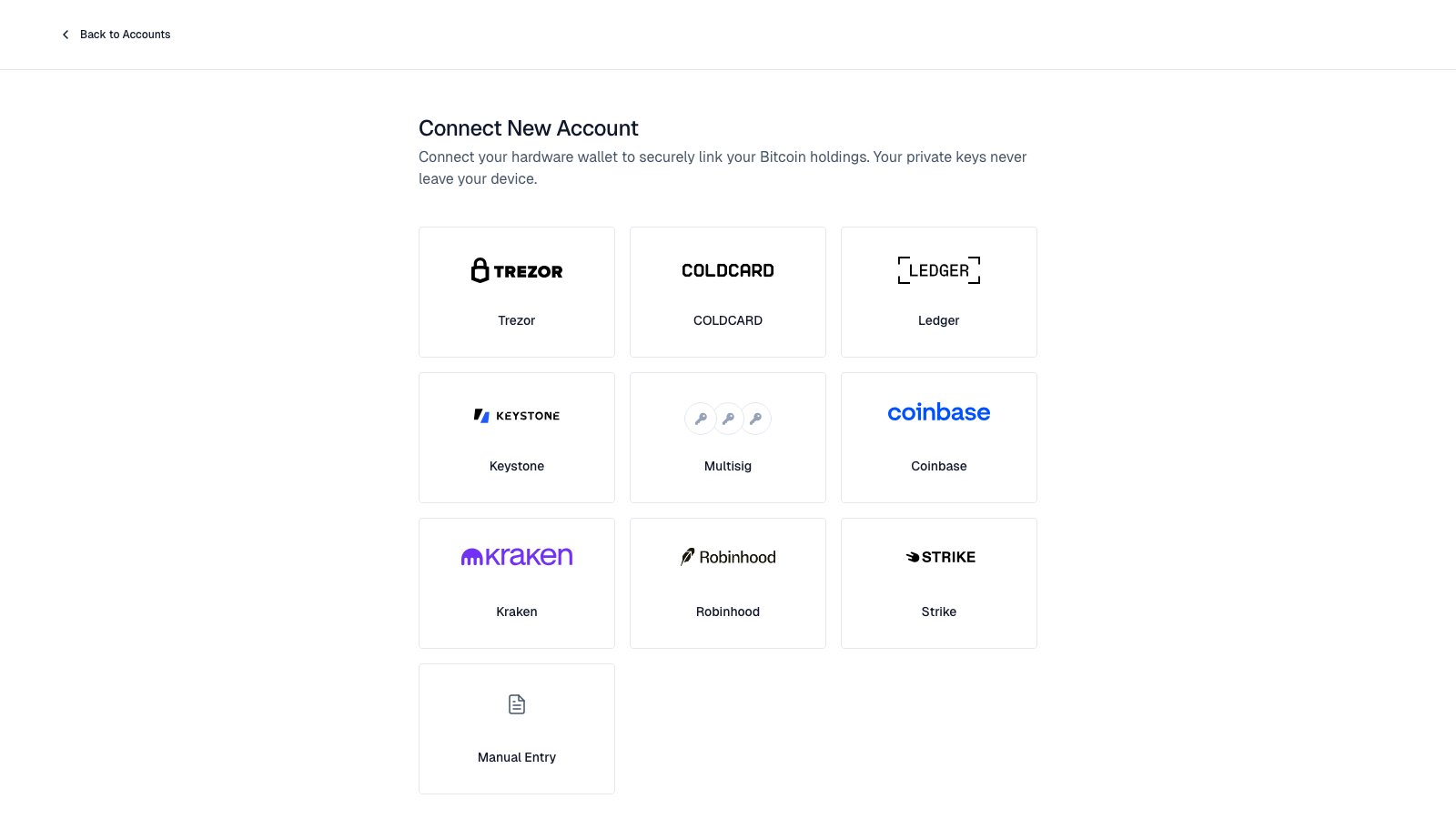
Wallet scans only list accounts with a balance above zero. A new or emptied wallet shows “No wallets found”. To track it anyway, add it by xpub or descriptor.
Check the account and balance. Select Yes, Continue. The account is saved as pending.
Sign the message on your device. The account becomes verified. See Verify ownership.
Ledger
Trezor
COLDCARD
Keystone
Plug in by USB. Unlock with your PIN. Open the Bitcoin app.
Select Next. In a browser, allow the connection prompt.
Control Center scans for accounts. Pick one if it finds several.
Connect your Ledger.
Names: accounts are named like Ledger Live, such as “Bitcoin Native Segwit 1”. “Segwit” alone means Nested SegWit.Scan rule: Control Center checks account 1 of each address type. It checks account 2 only if account 1 has a balance, and so on. An account after an empty one is not found. Add it by xpub instead.
On the desktop app, close Ledger Live and other wallet apps first. Only one app can talk to the Ledger at a time.
Plug in. Unlock.
Select Next. Trezor Suite opens. Allow Control Center to read your device details.
Select Next. Choose the account in Trezor Suite. Come back to Control Center.
Connect your Trezor.
Control Center uses Trezor Suite desktop if it is running. Otherwise it opens Trezor Suite Web in a pop-up. Allow pop-ups for Control Center.
Taproot accounts are not offered. Trezor cannot sign the ownership message for them.
The confirm screen always says “Account 1”. It still uses the account you picked.
Pick your model: MK2/MK3, MK4, or Q.
Pick your COLDCARD model.
On Mk2–Mk4, choose By Airgapping. USB is not supported.
On the COLDCARD, go to Advanced/Tools → Export Wallet → Generic JSON. If asked for an account number, choose yours (usually 0).
Never type your seed phrase into Control Center. Approve signatures on the device only.
{"docsConfig":{"theme":"mint","$schema":"https://mintlify.com/docs.json","name":"Bitcoin Control Center","description":"Help for Bitcoin Control Center: local-first, watch-only Bitcoin savings app.","colors":{"primary":"#0F172A","light":"#CBD5E1","dark":"#334155"},"logo":{"light":"https://mintcdn.com/hoseki-corp/XCQqCRepRDP5H4K0/logo/light.svg?fit=max\u0026auto=format\u0026n=XCQqCRepRDP5H4K0\u0026q=85\u0026s=655d533f0529ecc75c2121535a187f6e","dark":"https://mintcdn.com/hoseki-corp/XCQqCRepRDP5H4K0/logo/dark.svg?fit=max\u0026auto=format\u0026n=XCQqCRepRDP5H4K0\u0026q=85\u0026s=3203c0b644e3560704077a84860a999d","href":"/"},"favicon":"https://mintcdn.com/hoseki-corp/XCQqCRepRDP5H4K0/favicon.svg?fit=max\u0026auto=format\u0026n=XCQqCRepRDP5H4K0\u0026q=85\u0026s=9a244345061e9e0f99daa5cc23382c40","background":{"color":{"light":"#FFFFFF","dark":"#0F0F0F"}},"navbar":{"links":[{"href":"mailto:support@bitcoincontrolcenter.com","label":"Support"}],"primary":{"type":"button","label":"Download","href":"https://www.bitcoincontrolcenter.com"}},"footer":{"socials":{"github":"https://github.com/hoseki-inc/bitcoin-control-center","website":"https://www.bitcoincontrolcenter.com"}},"contextual":{"options":["copy","view","chatgpt","claude","perplexity","mcp","cursor","vscode"],"display":"header"},"styling":{"latex":false},"navigation":{"global":{"anchors":[{"anchor":"Download","icon":"download","href":"https://www.bitcoincontrolcenter.com"}]},"pages":[]}},"deployment":{"deploymentMetadataValue":{"subdomain":"hoseki-corp","hasAudioNarration":false,"actualSubdomain":"hoseki-corp","customDomains":["help.bitcoincontrolcenter.com"],"gitSource":{"type":"github","owner":"hoseki-inc","repo":"docs","deployBranch":"main","contentDirectory":"","isPrivate":false,"mountPath":"","label":"","_id":"6ade460699006ddb7c82d1c6"},"chroma":{"latestBuiltDeploymentHistoryId":"6ade636b1e65d711dc1d0bd1","collectionId":"d00d3cca-10be-457c-839f-ff2156bed70e","liveDeploymentHistoryId":"6ade636b1e65d711dc1d0bd1","schemaVersion":"v3"},"entitlements":{"AI_CHAT":{"status":"ENABLED"},"WEB_MCP":{"status":"ENABLED"},"NARRATION":{"status":"ENABLED"}},"buildId":"6ade6734fbe3b12122276d95","clientVersion":"0.0.3966","searchFilterCounts":[{"language":"default","tag":"Accounts","count":8},{"language":"default","tag":"Getting started","count":7},{"language":"default","tag":"Help","count":4},{"language":"default","tag":"Settings and security","count":3},{"language":"default","tag":"Updates and backup","count":2},{"language":"default","tag":"Portfolio","count":1},{"language":"default","tag":"Statements","count":1}]},"assistantConfig":{"enableAskAiButton":false,"enableStarterQuestions":false,"enableContextualStarterQuestions":false,"enableAskAiSearchBar":true},"hasChatPermissions":true,"hasWebMcpPermissions":true,"toggles":[{"name":"kill-isr","enabled":true,"variant":{"name":"disabled","enabled":false,"feature_enabled":true},"impressionData":false},{"name":"agent-mintlify-slack","enabled":true,"variant":{"name":"disabled","enabled":false,"feature_enabled":true},"impressionData":false},{"name":"editor-v7-file-tree","enabled":true,"variant":{"name":"disabled","enabled":false,"feature_enabled":true},"impressionData":false},{"name":"agent-integrations-settings","enabled":true,"variant":{"name":"disabled","enabled":false,"feature_enabled":true},"impressionData":false},{"name":"automations-pr-grouping","enabled":true,"variant":{"name":"disabled","enabled":false,"feature_enabled":true},"impressionData":false},{"name":"custom-prefix","enabled":true,"variant":{"name":"disabled","enabled":false,"feature_enabled":true},"impressionData":false},{"name":"analytics-v7","enabled":true,"variant":{"name":"disabled","enabled":false,"feature_enabled":true},"impressionData":false},{"name":"user-flows-analytics","enabled":true,"variant":{"name":"disabled","enabled":false,"feature_enabled":true},"impressionData":false},{"name":"no-publish-flow","enabled":true,"variant":{"name":"disabled","enabled":false,"feature_enabled":true},"impressionData":false},{"name":"workos-onboarding","enabled":true,"variant":{"name":"disabled","enabled":false,"feature_enabled":true},"impressionData":false},{"name":"llms-txt-v2","enabled":true,"variant":{"name":"disabled","enabled":false,"feature_enabled":true},"impressionData":false},{"name":"pause-universal-search-reconcile","enabled":true,"variant":{"name":"disabled","enabled":false,"feature_enabled":true},"impressionData":false},{"name":"snapshot-serving-live","enabled":true,"variant":{"name":"disabled","enabled":false,"feature_enabled":true},"impressionData":false},{"name":"stripTemperatureMiddleware","enabled":true,"variant":{"name":"disabled","enabled":false,"feature_enabled":true},"impressionData":false},{"name":"per-site-search-delta","enabled":true,"variant":{"name":"disabled","enabled":false,"feature_enabled":true},"impressionData":false},{"name":"support-platform-pylon-zendesk","enabled":true,"variant":{"name":"disabled","enabled":false,"feature_enabled":true},"impressionData":false},{"name":"snapshot-serving","enabled":true,"variant":{"name":"disabled","enabled":false,"feature_enabled":true},"impressionData":false},{"name":"instant-rollback","enabled":true,"variant":{"name":"disabled","enabled":false,"feature_enabled":true},"impressionData":false},{"name":"granular-notifications-server","enabled":true,"variant":{"name":"disabled","enabled":false,"feature_enabled":true},"impressionData":false},{"name":"granular-notifications","enabled":true,"variant":{"name":"disabled","enabled":false,"feature_enabled":true},"impressionData":false},{"name":"editor-private-page-search","enabled":true,"variant":{"name":"disabled","enabled":false,"feature_enabled":true},"impressionData":false},{"name":"automations-fable","enabled":true,"variant":{"name":"disabled","enabled":false,"feature_enabled":true},"impressionData":false},{"name":"fixed-ai-action-pricing","enabled":true,"variant":{"name":"disabled","enabled":false,"feature_enabled":true},"impressionData":false},{"name":"automation-resolve-merge-conflict","enabled":true,"variant":{"name":"disabled","enabled":false,"feature_enabled":true},"impressionData":false},{"name":"scoped-publishing","enabled":true,"variant":{"name":"disabled","enabled":false,"feature_enabled":true},"impressionData":false},{"name":"mintql","enabled":true,"variant":{"name":"disabled","enabled":false,"feature_enabled":true},"impressionData":false},{"name":"page-level-analytics","enabled":true,"variant":{"name":"disabled","enabled":false,"feature_enabled":true},"impressionData":false},{"name":"editor-version-history-v2","enabled":true,"variant":{"name":"disabled","enabled":false,"feature_enabled":true},"impressionData":false},{"name":"editor-nav-generations","enabled":true,"variant":{"name":"disabled","enabled":false,"feature_enabled":true},"impressionData":false},{"name":"billing-page-v2","enabled":true,"variant":{"name":"disabled","enabled":false,"feature_enabled":true},"impressionData":false},{"name":"workspace-projects","enabled":true,"variant":{"name":"disabled","enabled":false,"feature_enabled":true},"impressionData":false},{"name":"assistant-v5","enabled":true,"variant":{"name":"disabled","enabled":false,"feature_enabled":true},"impressionData":false},{"name":"byok-sep-25","enabled":true,"variant":{"name":"disabled","enabled":false,"feature_enabled":true},"impressionData":false},{"name":"fork-pr-previews","enabled":true,"variant":{"name":"disabled","enabled":false,"feature_enabled":true},"impressionData":false},{"name":"revalidation-jwt","enabled":true,"variant":{"name":"disabled","enabled":false,"feature_enabled":true},"impressionData":false},{"name":"vite-origin","enabled":true,"variant":{"name":"disabled","enabled":false,"feature_enabled":true},"impressionData":false},{"name":"editor-agent-model-picker","enabled":true,"variant":{"name":"disabled","enabled":false,"feature_enabled":true},"impressionData":false},{"name":"billing-updated-9-15","enabled":true,"variant":{"name":"disabled","enabled":false,"feature_enabled":true},"impressionData":false},{"name":"hobby-abuse-scan","enabled":true,"variant":{"name":"disabled","enabled":false,"feature_enabled":true},"impressionData":false},{"name":"dashboard-inbox","enabled":true,"variant":{"name":"disabled","enabled":false,"feature_enabled":true},"impressionData":false}],"isAtlas":false,"googleFontsInlined":false},"customCss":[],"page":{"pagePath":"accounts/hardware-wallets","slug":"/accounts/hardware-wallets","pageMetadata":{"title":"Hardware wallets","sidebarTitle":"Hardware wallets","description":"Track Ledger, Trezor, COLDCARD, and Keystone wallets watch-only.","keywords":["ledger","trezor","coldcard","keystone","xpub","watch-only","taproot","microsd","webhid"],"href":"/accounts/hardware-wallets"},"description":{"compiledSource":"\"use strict\";\nconst {jsx: _jsx} = arguments[0];\nconst {useMDXComponents: _provideComponents} = arguments[0];\nfunction _createMdxContent(props) {\n const _components = {\n p: \"p\",\n ..._provideComponents(),\n ...props.components\n };\n return _jsx(_components.p, {\n children: \"Track Ledger, Trezor, COLDCARD, and Keystone wallets watch-only.\"\n });\n}\nfunction MDXContent(props = {}) {\n const {wrapper: MDXLayout} = {\n ..._provideComponents(),\n ...props.components\n };\n return MDXLayout ? _jsx(MDXLayout, {\n ...props,\n children: _jsx(_createMdxContent, {\n ...props\n })\n }) : _createMdxContent(props);\n}\nreturn {\n default: MDXContent\n};\n","frontmatter":{},"scope":{}},"pageType":"default","mdx":{"mdxSource":{"compiledSource":"\"use strict\";const{Fragment:_Fragment,jsx:_jsx,jsxs:_jsxs}=arguments[0];const{useMDXComponents:_provideComponents}=arguments[0];function _createMdxContent(props){const _components={a:`a`,code:`code`,li:`li`,ol:`ol`,p:`p`,strong:`strong`,tbody:`tbody`,td:`td`,th:`th`,thead:`thead`,tr:`tr`,ul:`ul`,..._provideComponents(),...props.components},{Frame,Heading,Mermaid,Note,OptimizedImage,Tab,Table,Tabs,Tip,Warning}=_components;if(!Frame)_missingMdxReference(`Frame`,true);if(!Heading)_missingMdxReference(`Heading`,true);if(!Mermaid)_missingMdxReference(`Mermaid`,true);if(!Note)_missingMdxReference(`Note`,true);if(!OptimizedImage)_missingMdxReference(`OptimizedImage`,true);if(!Tab)_missingMdxReference(`Tab`,true);if(!Table)_missingMdxReference(`Table`,true);if(!Tabs)_missingMdxReference(`Tabs`,true);if(!Tip)_missingMdxReference(`Tip`,true);if(!Warning)_missingMdxReference(`Warning`,true);return _jsxs(_Fragment,{children:[_jsxs(_components.p,{children:[`Control Center imports `,_jsx(_components.strong,{children:`public`}),` keys (xpubs) only. Your coins stay on your wallet. Nothing can be spent.`]}),`\n`,_jsx(Heading,{level:`2`,id:`what-you-need`,children:`What you need`}),`\n`,_jsxs(Table,{children:[_jsx(_components.thead,{children:_jsxs(_components.tr,{children:[_jsx(_components.th,{children:`Wallet`}),_jsx(_components.th,{children:`Connects by`}),_jsx(_components.th,{children:`You also need`}),_jsx(_components.th,{children:`Address types`})]})}),_jsxs(_components.tbody,{children:[_jsxs(_components.tr,{children:[_jsx(_components.td,{children:_jsx(_components.strong,{children:`Ledger`})}),_jsx(_components.td,{children:`USB`}),_jsxs(_components.td,{children:[`The `,_jsx(_components.strong,{children:`Bitcoin`}),` app open. In a browser: Chrome, Brave, or Edge.`]}),_jsx(_components.td,{children:`Legacy, Nested SegWit, Native SegWit, Taproot`})]}),_jsxs(_components.tr,{children:[_jsx(_components.td,{children:_jsx(_components.strong,{children:`Trezor`})}),_jsx(_components.td,{children:`Trezor Suite`}),_jsx(_components.td,{children:`Trezor Suite (desktop or web). Pop-ups allowed.`}),_jsx(_components.td,{children:`Legacy, Nested SegWit, Native SegWit. No Taproot.`})]}),_jsxs(_components.tr,{children:[_jsxs(_components.td,{children:[_jsx(_components.strong,{children:`COLDCARD`}),` Mk2, Mk3, Mk4`]}),_jsx(_components.td,{children:`MicroSD file`}),_jsx(_components.td,{children:`A MicroSD card. USB is not supported.`}),_jsx(_components.td,{children:`Legacy, Nested SegWit, Native SegWit`})]}),_jsxs(_components.tr,{children:[_jsx(_components.td,{children:_jsx(_components.strong,{children:`COLDCARD Q`})}),_jsx(_components.td,{children:`QR code`}),_jsx(_components.td,{children:`A webcam.`}),_jsx(_components.td,{children:`Legacy, Nested SegWit, Native SegWit`})]}),_jsxs(_components.tr,{children:[_jsx(_components.td,{children:_jsx(_components.strong,{children:`Keystone`})}),_jsx(_components.td,{children:`QR code`}),_jsx(_components.td,{children:`A webcam.`}),_jsx(_components.td,{children:`Native SegWit`})]})]})]}),`\n`,_jsxs(_components.p,{children:[`Other wallet or address type? Use an `,_jsx(_components.a,{href:`/accounts/xpub-and-descriptors`,children:`xpub or descriptor`}),` instead.`]}),`\n`,_jsxs(Warning,{children:[`Wallet scans only list accounts with a balance above zero. A new or emptied wallet shows “No wallets found”. To track it anyway, add it by `,_jsx(_components.a,{href:`/accounts/xpub-and-descriptors`,children:`xpub or descriptor`}),`.`]}),`\n`,_jsx(Heading,{level:`2`,id:`add-a-hardware-wallet`,children:`Add a hardware wallet`}),`\n`,_jsx(_components.p,{children:`Every wallet follows the same three stages.`}),`\n`,_jsx(Mermaid,{chart:`flowchart LR\n A[\"1. Connect\u003cbr/>read the public key\"] --> B[\"2. Confirm\u003cbr/>check name and balance\"]\n B --> C[\"3. Prove control\u003cbr/>sign one message\"]`}),`\n`,_jsxs(_components.ol,{children:[`\n`,_jsxs(_components.li,{children:[`\n`,_jsxs(_components.p,{children:[`Select `,_jsx(_components.strong,{children:`Add Account`}),`. Pick your wallet.`]}),`\n`,_jsx(Frame,{caption:`Pick your wallet.`,children:_jsx(OptimizedImage,{src:`https://mintcdn.com/hoseki-corp/XCQqCRepRDP5H4K0/images/accounts-add-account.png?fit=max\u0026auto=format\u0026n=XCQqCRepRDP5H4K0\u0026q=85\u0026s=b6bd1b1a84943015121ec9110af604f5`,alt:`Add Account screen listing wallets, exchanges, and manual entry`,\"data-og-width\":`1600`,width:`1600`,\"data-og-height\":`900`,height:`900`,\"data-path\":`images/accounts-add-account.png`,\"data-optimize\":`true`,\"data-opv\":`3`,srcset:`https://mintcdn.com/hoseki-corp/XCQqCRepRDP5H4K0/images/accounts-add-account.png?w=280\u0026fit=max\u0026auto=format\u0026n=XCQqCRepRDP5H4K0\u0026q=85\u0026s=840c332f443fb1750925bb59019f6f1d 280w, https://mintcdn.com/hoseki-corp/XCQqCRepRDP5H4K0/images/accounts-add-account.png?w=560\u0026fit=max\u0026auto=format\u0026n=XCQqCRepRDP5H4K0\u0026q=85\u0026s=3740e767b226377606e33510e69f80ca 560w, https://mintcdn.com/hoseki-corp/XCQqCRepRDP5H4K0/images/accounts-add-account.png?w=840\u0026fit=max\u0026auto=format\u0026n=XCQqCRepRDP5H4K0\u0026q=85\u0026s=3cd941fd889cb44748f3c369c724cf65 840w, https://mintcdn.com/hoseki-corp/XCQqCRepRDP5H4K0/images/accounts-add-account.png?w=1100\u0026fit=max\u0026auto=format\u0026n=XCQqCRepRDP5H4K0\u0026q=85\u0026s=d3415f48a62b8798974a5974ca000df3 1100w, https://mintcdn.com/hoseki-corp/XCQqCRepRDP5H4K0/images/accounts-add-account.png?w=1650\u0026fit=max\u0026auto=format\u0026n=XCQqCRepRDP5H4K0\u0026q=85\u0026s=011d18ec61c0d403cbbaeffbb9a36ef9 1650w, https://mintcdn.com/hoseki-corp/XCQqCRepRDP5H4K0/images/accounts-add-account.png?w=2500\u0026fit=max\u0026auto=format\u0026n=XCQqCRepRDP5H4K0\u0026q=85\u0026s=6908bb6420974225975b0f018539d59a 2500w`})}),`\n`]}),`\n`,_jsxs(_components.li,{children:[`\n`,_jsx(_components.p,{children:`Follow the steps for your wallet below.`}),`\n`]}),`\n`,_jsxs(_components.li,{children:[`\n`,_jsxs(_components.p,{children:[`Check the account and balance. Select `,_jsx(_components.strong,{children:`Yes, Continue`}),`. The account is saved as `,_jsx(_components.strong,{children:`pending`}),`.`]}),`\n`]}),`\n`,_jsxs(_components.li,{children:[`\n`,_jsxs(_components.p,{children:[`Sign the message on your device. The account becomes `,_jsx(_components.strong,{children:`verified`}),`. See `,_jsx(_components.a,{href:`/accounts/verify-ownership`,children:`Verify ownership`}),`.`]}),`\n`]}),`\n`]}),`\n`,_jsxs(Tabs,{children:[_jsxs(Tab,{title:`Ledger`,id:`ledger`,children:[_jsxs(_components.ol,{children:[`\n`,_jsxs(_components.li,{children:[`Plug in by USB. Unlock with your PIN. Open the `,_jsx(_components.strong,{children:`Bitcoin`}),` app.`]}),`\n`,_jsxs(_components.li,{children:[`Select `,_jsx(_components.strong,{children:`Next`}),`. In a browser, allow the connection prompt.`]}),`\n`,_jsx(_components.li,{children:`Control Center scans for accounts. Pick one if it finds several.`}),`\n`]}),_jsx(Frame,{caption:`Connect your Ledger.`,children:_jsx(OptimizedImage,{src:`https://mintcdn.com/hoseki-corp/XCQqCRepRDP5H4K0/images/accounts-ledger-connect.png?fit=max\u0026auto=format\u0026n=XCQqCRepRDP5H4K0\u0026q=85\u0026s=fc609f8689776ef164e9c15e22579fa8`,alt:`Ledger connection prompt in Control Center`,\"data-og-width\":`1600`,width:`1600`,\"data-og-height\":`900`,height:`900`,\"data-path\":`images/accounts-ledger-connect.png`,\"data-optimize\":`true`,\"data-opv\":`3`,srcset:`https://mintcdn.com/hoseki-corp/XCQqCRepRDP5H4K0/images/accounts-ledger-connect.png?w=280\u0026fit=max\u0026auto=format\u0026n=XCQqCRepRDP5H4K0\u0026q=85\u0026s=c735321c1f3d4546d69998125a2f653d 280w, https://mintcdn.com/hoseki-corp/XCQqCRepRDP5H4K0/images/accounts-ledger-connect.png?w=560\u0026fit=max\u0026auto=format\u0026n=XCQqCRepRDP5H4K0\u0026q=85\u0026s=cb22346f79176759ca7277e62b3c065e 560w, https://mintcdn.com/hoseki-corp/XCQqCRepRDP5H4K0/images/accounts-ledger-connect.png?w=840\u0026fit=max\u0026auto=format\u0026n=XCQqCRepRDP5H4K0\u0026q=85\u0026s=15e66fd97c3da293e4b97cf6f4a8f5b6 840w, https://mintcdn.com/hoseki-corp/XCQqCRepRDP5H4K0/images/accounts-ledger-connect.png?w=1100\u0026fit=max\u0026auto=format\u0026n=XCQqCRepRDP5H4K0\u0026q=85\u0026s=220e5c2915a52bb18650e932d8f52801 1100w, https://mintcdn.com/hoseki-corp/XCQqCRepRDP5H4K0/images/accounts-ledger-connect.png?w=1650\u0026fit=max\u0026auto=format\u0026n=XCQqCRepRDP5H4K0\u0026q=85\u0026s=d5d6bd2fa41bc126337aec4c9b1691cf 1650w, https://mintcdn.com/hoseki-corp/XCQqCRepRDP5H4K0/images/accounts-ledger-connect.png?w=2500\u0026fit=max\u0026auto=format\u0026n=XCQqCRepRDP5H4K0\u0026q=85\u0026s=eb46120c91eca5307b5c4eb8b9d35c04 2500w`})}),_jsxs(_components.p,{children:[_jsx(_components.strong,{children:`Names:`}),` accounts are named like Ledger Live, such as “Bitcoin Native Segwit 1”. “Segwit” alone means Nested SegWit.`]}),_jsxs(_components.p,{children:[_jsx(_components.strong,{children:`Scan rule:`}),` Control Center checks account 1 of each address type. It checks account 2 only if account 1 has a balance, and so on. An account after an empty one is not found. Add it by `,_jsx(_components.a,{href:`/accounts/xpub-and-descriptors`,children:`xpub`}),` instead.`]}),_jsx(Note,{children:`On the desktop app, close Ledger Live and other wallet apps first. Only one app can talk to the Ledger at a time.`})]}),_jsxs(Tab,{title:`Trezor`,id:`trezor`,children:[_jsxs(_components.ol,{children:[`\n`,_jsx(_components.li,{children:`Plug in. Unlock.`}),`\n`,_jsxs(_components.li,{children:[`Select `,_jsx(_components.strong,{children:`Next`}),`. Trezor Suite opens. Allow Control Center to read your device details.`]}),`\n`,_jsxs(_components.li,{children:[`Select `,_jsx(_components.strong,{children:`Next`}),`. Choose the account in Trezor Suite. Come back to Control Center.`]}),`\n`]}),_jsx(Frame,{caption:`Connect your Trezor.`,children:_jsx(OptimizedImage,{src:`https://mintcdn.com/hoseki-corp/XCQqCRepRDP5H4K0/images/accounts-trezor-connect.png?fit=max\u0026auto=format\u0026n=XCQqCRepRDP5H4K0\u0026q=85\u0026s=09acc50a92288038e9ea9a5fed44569f`,alt:`Trezor connection prompt in Control Center`,\"data-og-width\":`1600`,width:`1600`,\"data-og-height\":`900`,height:`900`,\"data-path\":`images/accounts-trezor-connect.png`,\"data-optimize\":`true`,\"data-opv\":`3`,srcset:`https://mintcdn.com/hoseki-corp/XCQqCRepRDP5H4K0/images/accounts-trezor-connect.png?w=280\u0026fit=max\u0026auto=format\u0026n=XCQqCRepRDP5H4K0\u0026q=85\u0026s=1684f1fe13d4cd2971176a0beece3798 280w, https://mintcdn.com/hoseki-corp/XCQqCRepRDP5H4K0/images/accounts-trezor-connect.png?w=560\u0026fit=max\u0026auto=format\u0026n=XCQqCRepRDP5H4K0\u0026q=85\u0026s=205c2dd4520610b9b7123e0f21d5ae91 560w, https://mintcdn.com/hoseki-corp/XCQqCRepRDP5H4K0/images/accounts-trezor-connect.png?w=840\u0026fit=max\u0026auto=format\u0026n=XCQqCRepRDP5H4K0\u0026q=85\u0026s=32cd2eaeb268e43e8735b1eab13533f8 840w, https://mintcdn.com/hoseki-corp/XCQqCRepRDP5H4K0/images/accounts-trezor-connect.png?w=1100\u0026fit=max\u0026auto=format\u0026n=XCQqCRepRDP5H4K0\u0026q=85\u0026s=bc8ad0cac6ff0f5459caffc8708a09b7 1100w, https://mintcdn.com/hoseki-corp/XCQqCRepRDP5H4K0/images/accounts-trezor-connect.png?w=1650\u0026fit=max\u0026auto=format\u0026n=XCQqCRepRDP5H4K0\u0026q=85\u0026s=4f87c4eb780246ba91f0c5a0a0b89a7d 1650w, https://mintcdn.com/hoseki-corp/XCQqCRepRDP5H4K0/images/accounts-trezor-connect.png?w=2500\u0026fit=max\u0026auto=format\u0026n=XCQqCRepRDP5H4K0\u0026q=85\u0026s=1135dbd8fc625c4ceb80828e3a9c1618 2500w`})}),_jsxs(_components.ul,{children:[`\n`,_jsx(_components.li,{children:`Control Center uses Trezor Suite desktop if it is running. Otherwise it opens Trezor Suite Web in a pop-up. Allow pop-ups for Control Center.`}),`\n`,_jsx(_components.li,{children:`Taproot accounts are not offered. Trezor cannot sign the ownership message for them.`}),`\n`,_jsx(_components.li,{children:`The confirm screen always says “Account 1”. It still uses the account you picked.`}),`\n`]})]}),_jsxs(Tab,{title:`COLDCARD`,id:`coldcard`,children:[_jsxs(_components.ol,{children:[`\n`,_jsxs(_components.li,{children:[`\n`,_jsxs(_components.p,{children:[`Pick your model: `,_jsx(_components.strong,{children:`MK2/MK3`}),`, `,_jsx(_components.strong,{children:`MK4`}),`, or `,_jsx(_components.strong,{children:`Q`}),`.`]}),`\n`,_jsx(Frame,{caption:`Pick your COLDCARD model.`,children:_jsx(OptimizedImage,{src:`https://mintcdn.com/hoseki-corp/UfUbkRUza9CJFqpH/images/accounts-coldcard-model.png?fit=max\u0026auto=format\u0026n=UfUbkRUza9CJFqpH\u0026q=85\u0026s=4c38c9e9061f81ecb7d3a279ce63f8c1`,alt:`COLDCARD setup screen asking which model you have: MK2/MK3, MK4, or Q`,\"data-og-width\":`1600`,width:`1600`,\"data-og-height\":`900`,height:`900`,\"data-path\":`images/accounts-coldcard-model.png`,\"data-optimize\":`true`,\"data-opv\":`3`,srcset:`https://mintcdn.com/hoseki-corp/UfUbkRUza9CJFqpH/images/accounts-coldcard-model.png?w=280\u0026fit=max\u0026auto=format\u0026n=UfUbkRUza9CJFqpH\u0026q=85\u0026s=061b17083ece34badb4dced51a711868 280w, https://mintcdn.com/hoseki-corp/UfUbkRUza9CJFqpH/images/accounts-coldcard-model.png?w=560\u0026fit=max\u0026auto=format\u0026n=UfUbkRUza9CJFqpH\u0026q=85\u0026s=8e6723a05c9af76211d57b24d22b8101 560w, https://mintcdn.com/hoseki-corp/UfUbkRUza9CJFqpH/images/accounts-coldcard-model.png?w=840\u0026fit=max\u0026auto=format\u0026n=UfUbkRUza9CJFqpH\u0026q=85\u0026s=e67fc25f562fece5cf195c4609ccb203 840w, https://mintcdn.com/hoseki-corp/UfUbkRUza9CJFqpH/images/accounts-coldcard-model.png?w=1100\u0026fit=max\u0026auto=format\u0026n=UfUbkRUza9CJFqpH\u0026q=85\u0026s=69bdf7cdfc81768cc42fb36b13b226ea 1100w, https://mintcdn.com/hoseki-corp/UfUbkRUza9CJFqpH/images/accounts-coldcard-model.png?w=1650\u0026fit=max\u0026auto=format\u0026n=UfUbkRUza9CJFqpH\u0026q=85\u0026s=d1ad7038c66ed3548614bdd706223445 1650w, https://mintcdn.com/hoseki-corp/UfUbkRUza9CJFqpH/images/accounts-coldcard-model.png?w=2500\u0026fit=max\u0026auto=format\u0026n=UfUbkRUza9CJFqpH\u0026q=85\u0026s=c63309183f7561324016873b13dd5407 2500w`})}),`\n`]}),`\n`,_jsxs(_components.li,{children:[`\n`,_jsxs(_components.p,{children:[`On Mk2–Mk4, choose `,_jsx(_components.strong,{children:`By Airgapping`}),`. USB is not supported.`]}),`\n`]}),`\n`,_jsxs(_components.li,{children:[`\n`,_jsxs(_components.p,{children:[`On the COLDCARD, go to `,_jsx(_components.strong,{children:`Advanced/Tools`}),` → `,_jsx(_components.strong,{children:`Export Wallet`}),` → `,_jsx(_components.strong,{children:`Generic JSON`}),`. If asked for an account number, choose yours (usually `,_jsx(_components.code,{children:`0`}),`).`]}),`\n`]}),`\n`,_jsxs(_components.li,{children:[`\n`,_jsxs(_components.p,{children:[`Upload `,_jsx(_components.code,{children:`coldcard-export.json`}),`. Select `,_jsx(_components.strong,{children:`Connect Wallet`}),`.`]}),`\n`]}),`\n`]}),_jsx(Frame,{caption:`Export Generic JSON to the MicroSD card.`,children:_jsx(OptimizedImage,{src:`https://mintcdn.com/hoseki-corp/UfUbkRUza9CJFqpH/images/accounts-coldcard-export.png?fit=max\u0026auto=format\u0026n=UfUbkRUza9CJFqpH\u0026q=85\u0026s=de197fc4e2422e91716430bac1ba29dc`,alt:`COLDCARD export step showing Advanced/Tools, Export Wallet, Generic JSON`,\"data-og-width\":`1600`,width:`1600`,\"data-og-height\":`900`,height:`900`,\"data-path\":`images/accounts-coldcard-export.png`,\"data-optimize\":`true`,\"data-opv\":`3`,srcset:`https://mintcdn.com/hoseki-corp/UfUbkRUza9CJFqpH/images/accounts-coldcard-export.png?w=280\u0026fit=max\u0026auto=format\u0026n=UfUbkRUza9CJFqpH\u0026q=85\u0026s=8331768425fe4c2dca1a88185e51af73 280w, https://mintcdn.com/hoseki-corp/UfUbkRUza9CJFqpH/images/accounts-coldcard-export.png?w=560\u0026fit=max\u0026auto=format\u0026n=UfUbkRUza9CJFqpH\u0026q=85\u0026s=7bb71fa3f4e9675526f0b7b66f1b608f 560w, https://mintcdn.com/hoseki-corp/UfUbkRUza9CJFqpH/images/accounts-coldcard-export.png?w=840\u0026fit=max\u0026auto=format\u0026n=UfUbkRUza9CJFqpH\u0026q=85\u0026s=94696db747dd6001212b3f36b12a2d02 840w, https://mintcdn.com/hoseki-corp/UfUbkRUza9CJFqpH/images/accounts-coldcard-export.png?w=1100\u0026fit=max\u0026auto=format\u0026n=UfUbkRUza9CJFqpH\u0026q=85\u0026s=961a29323e9675e600fd2e64733ab7ae 1100w, https://mintcdn.com/hoseki-corp/UfUbkRUza9CJFqpH/images/accounts-coldcard-export.png?w=1650\u0026fit=max\u0026auto=format\u0026n=UfUbkRUza9CJFqpH\u0026q=85\u0026s=32cb48458e6c0aa758087bc967cba2d6 1650w, https://mintcdn.com/hoseki-corp/UfUbkRUza9CJFqpH/images/accounts-coldcard-export.png?w=2500\u0026fit=max\u0026auto=format\u0026n=UfUbkRUza9CJFqpH\u0026q=85\u0026s=d422442f91c993107d90bd2bf507441a 2500w`})}),_jsxs(_components.p,{children:[`On `,_jsx(_components.strong,{children:`COLDCARD Q`}),`, show the same export as a QR code (press the QR button). Hold the screen up to your webcam.`]}),_jsx(Frame,{caption:`MicroSD or QR.`,children:_jsx(OptimizedImage,{src:`https://mintcdn.com/hoseki-corp/XCQqCRepRDP5H4K0/images/accounts-coldcard-import.png?fit=max\u0026auto=format\u0026n=XCQqCRepRDP5H4K0\u0026q=85\u0026s=b405d53e6500ae0b14f8d16a119a0018`,alt:`COLDCARD import step with MicroSD and QR options`,\"data-og-width\":`1600`,width:`1600`,\"data-og-height\":`900`,height:`900`,\"data-path\":`images/accounts-coldcard-import.png`,\"data-optimize\":`true`,\"data-opv\":`3`,srcset:`https://mintcdn.com/hoseki-corp/XCQqCRepRDP5H4K0/images/accounts-coldcard-import.png?w=280\u0026fit=max\u0026auto=format\u0026n=XCQqCRepRDP5H4K0\u0026q=85\u0026s=e8a54d48c9182aab9d1a12881f719669 280w, https://mintcdn.com/hoseki-corp/XCQqCRepRDP5H4K0/images/accounts-coldcard-import.png?w=560\u0026fit=max\u0026auto=format\u0026n=XCQqCRepRDP5H4K0\u0026q=85\u0026s=713579783f3d9117138508ed92c14896 560w, https://mintcdn.com/hoseki-corp/XCQqCRepRDP5H4K0/images/accounts-coldcard-import.png?w=840\u0026fit=max\u0026auto=format\u0026n=XCQqCRepRDP5H4K0\u0026q=85\u0026s=cace7e7bbebbdbe1e9b2cf87b65019c7 840w, https://mintcdn.com/hoseki-corp/XCQqCRepRDP5H4K0/images/accounts-coldcard-import.png?w=1100\u0026fit=max\u0026auto=format\u0026n=XCQqCRepRDP5H4K0\u0026q=85\u0026s=499bdc86cc68e75851eb6d4975a5f52f 1100w, https://mintcdn.com/hoseki-corp/XCQqCRepRDP5H4K0/images/accounts-coldcard-import.png?w=1650\u0026fit=max\u0026auto=format\u0026n=XCQqCRepRDP5H4K0\u0026q=85\u0026s=375f9256750f85e5a253977e7e686d11 1650w, https://mintcdn.com/hoseki-corp/XCQqCRepRDP5H4K0/images/accounts-coldcard-import.png?w=2500\u0026fit=max\u0026auto=format\u0026n=XCQqCRepRDP5H4K0\u0026q=85\u0026s=28d7c696b88eb76e03bfa04938570dd8 2500w`})}),_jsx(Tip,{children:`Delete the export file from your computer when you finish. It holds your public keys.`})]}),_jsxs(Tab,{title:`Keystone`,id:`keystone`,children:[_jsxs(_components.ol,{children:[`\n`,_jsxs(_components.li,{children:[`Select `,_jsx(_components.strong,{children:`Next`}),`. Allow camera access when your browser asks.`]}),`\n`,_jsxs(_components.li,{children:[`On Keystone, show your wallet’s export QR code. Select `,_jsx(_components.strong,{children:`Ready to Scan`}),`.`]}),`\n`,_jsx(_components.li,{children:`Hold the Keystone screen up to your webcam.`}),`\n`]}),_jsx(Frame,{caption:`Scan the Keystone QR.`,children:_jsx(OptimizedImage,{src:`https://mintcdn.com/hoseki-corp/XCQqCRepRDP5H4K0/images/accounts-keystone-qr.png?fit=max\u0026auto=format\u0026n=XCQqCRepRDP5H4K0\u0026q=85\u0026s=e94e884ea5a4777b8d85aa35d597bfa4`,alt:`Keystone QR scan step`,\"data-og-width\":`1600`,width:`1600`,\"data-og-height\":`900`,height:`900`,\"data-path\":`images/accounts-keystone-qr.png`,\"data-optimize\":`true`,\"data-opv\":`3`,srcset:`https://mintcdn.com/hoseki-corp/XCQqCRepRDP5H4K0/images/accounts-keystone-qr.png?w=280\u0026fit=max\u0026auto=format\u0026n=XCQqCRepRDP5H4K0\u0026q=85\u0026s=b3114456f8a82c862f60189f08baa0b6 280w, https://mintcdn.com/hoseki-corp/XCQqCRepRDP5H4K0/images/accounts-keystone-qr.png?w=560\u0026fit=max\u0026auto=format\u0026n=XCQqCRepRDP5H4K0\u0026q=85\u0026s=29f19ce6d64ea010faf0b52c022785a9 560w, https://mintcdn.com/hoseki-corp/XCQqCRepRDP5H4K0/images/accounts-keystone-qr.png?w=840\u0026fit=max\u0026auto=format\u0026n=XCQqCRepRDP5H4K0\u0026q=85\u0026s=7cd36367dfe04776d5200a561f04591e 840w, https://mintcdn.com/hoseki-corp/XCQqCRepRDP5H4K0/images/accounts-keystone-qr.png?w=1100\u0026fit=max\u0026auto=format\u0026n=XCQqCRepRDP5H4K0\u0026q=85\u0026s=c1e679a560fe511e315aa2d856241237 1100w, https://mintcdn.com/hoseki-corp/XCQqCRepRDP5H4K0/images/accounts-keystone-qr.png?w=1650\u0026fit=max\u0026auto=format\u0026n=XCQqCRepRDP5H4K0\u0026q=85\u0026s=feee66a3eacacfbb023ef5f2dfd0c76e 1650w, https://mintcdn.com/hoseki-corp/XCQqCRepRDP5H4K0/images/accounts-keystone-qr.png?w=2500\u0026fit=max\u0026auto=format\u0026n=XCQqCRepRDP5H4K0\u0026q=85\u0026s=700cc4afc418e3c8a7979a2c685a45b4 2500w`})}),_jsxs(_components.p,{children:[`Keystone accounts are treated as Native SegWit (`,_jsx(_components.code,{children:`bc1q…`}),`). If the balance looks wrong, add the wallet by `,_jsx(_components.a,{href:`/accounts/xpub-and-descriptors`,children:`descriptor`}),` with the right address type.`]})]})]}),`\n`,_jsx(Heading,{level:`2`,id:`after-you-add-it`,children:`After you add it`}),`\n`,_jsx(_components.p,{children:`The new account syncs. Large wallets take longer.`}),`\n`,_jsx(Frame,{caption:`Syncing a new account.`,children:_jsx(OptimizedImage,{src:`https://mintcdn.com/hoseki-corp/XCQqCRepRDP5H4K0/images/accounts-syncing.png?fit=max\u0026auto=format\u0026n=XCQqCRepRDP5H4K0\u0026q=85\u0026s=3a0213e580fe9d90818ee96a88170615`,alt:`New account syncing in the Accounts list`,\"data-og-width\":`1600`,width:`1600`,\"data-og-height\":`900`,height:`900`,\"data-path\":`images/accounts-syncing.png`,\"data-optimize\":`true`,\"data-opv\":`3`,srcset:`https://mintcdn.com/hoseki-corp/XCQqCRepRDP5H4K0/images/accounts-syncing.png?w=280\u0026fit=max\u0026auto=format\u0026n=XCQqCRepRDP5H4K0\u0026q=85\u0026s=4f7c3b1bd488f393168151d41de6a160 280w, https://mintcdn.com/hoseki-corp/XCQqCRepRDP5H4K0/images/accounts-syncing.png?w=560\u0026fit=max\u0026auto=format\u0026n=XCQqCRepRDP5H4K0\u0026q=85\u0026s=f35a5d3dd6eb54b3319ce2e98207eba0 560w, https://mintcdn.com/hoseki-corp/XCQqCRepRDP5H4K0/images/accounts-syncing.png?w=840\u0026fit=max\u0026auto=format\u0026n=XCQqCRepRDP5H4K0\u0026q=85\u0026s=2ec65f77073fb7829fdd1b5a6ee71db5 840w, https://mintcdn.com/hoseki-corp/XCQqCRepRDP5H4K0/images/accounts-syncing.png?w=1100\u0026fit=max\u0026auto=format\u0026n=XCQqCRepRDP5H4K0\u0026q=85\u0026s=07612f5b020da74e9fa4d1b3c7e59c77 1100w, https://mintcdn.com/hoseki-corp/XCQqCRepRDP5H4K0/images/accounts-syncing.png?w=1650\u0026fit=max\u0026auto=format\u0026n=XCQqCRepRDP5H4K0\u0026q=85\u0026s=f58f06b97b997affffc1879b1ac06c22 1650w, https://mintcdn.com/hoseki-corp/XCQqCRepRDP5H4K0/images/accounts-syncing.png?w=2500\u0026fit=max\u0026auto=format\u0026n=XCQqCRepRDP5H4K0\u0026q=85\u0026s=311bc238f99a40ebcaa1908911684acf 2500w`})}),`\n`,_jsxs(_components.ul,{children:[`\n`,_jsxs(_components.li,{children:[`Balance looks wrong? See `,_jsx(_components.a,{href:`/help/troubleshooting#balances`,children:`Troubleshooting`}),`.`]}),`\n`,_jsxs(_components.li,{children:[`Stopped before signing? The account stays `,_jsx(_components.strong,{children:`pending`}),`. Open it and select `,_jsx(_components.strong,{children:`Continue`}),`.`]}),`\n`,_jsxs(_components.li,{children:[`To rename, archive, or remove it, see `,_jsx(_components.a,{href:`/accounts/manage-accounts`,children:`Manage accounts`}),`.`]}),`\n`]}),`\n`,_jsx(Warning,{children:`Never type your seed phrase into Control Center. Approve signatures on the device only.`})]})}function MDXContent(props={}){const{wrapper:MDXLayout}={..._provideComponents(),...props.components};return MDXLayout?_jsx(MDXLayout,{...props,children:_jsx(_createMdxContent,{...props})}):_createMdxContent(props)}return{default:MDXContent};function _missingMdxReference(id,component){throw new Error(`Expected `+(component?`component`:`object`)+\" `\"+id+\"` to be defined: you likely forgot to import, pass, or provide it.\")}","frontmatter":{},"scope":{"config":{},"pageMetadata":{"title":"Hardware wallets","sidebarTitle":"Hardware wallets","description":"Track Ledger, Trezor, COLDCARD, and Keystone wallets watch-only.","keywords":["ledger","trezor","coldcard","keystone","xpub","watch-only","taproot","microsd","webhid"],"href":"/accounts/hardware-wallets"}}},"mdxSourceWithNoJs":null},"mdxExtracts":{"tableOfContents":[{"title":"What you need","slug":"what-you-need","depth":2,"children":[]},{"title":"Add a hardware wallet","slug":"add-a-hardware-wallet","depth":2,"children":[]},{"title":"After you add it","slug":"after-you-add-it","depth":2,"children":[]}],"codeExamples":{}},"jsLinks":[],"subdomain":"hoseki-corp","siteName":"Bitcoin Control Center","title":"Hardware wallets - Bitcoin Control Center","navMaps":{"firstHrefInVersion":{},"firstHrefInLanguage":{}},"lastModified":"2026-10-25T20:15:43.487Z","originalFileLocation":"accounts/hardware-wallets.mdx"},"headHtml":"\u003cscript data-mint-head>(function(){var d=document.documentElement,p=null;if(!p){try{p=localStorage.getItem(\"isDarkMode\")}catch(e){}if(p==='true')p='dark';else if(p==='false')p='light';if(p!=='light'\u0026\u0026p!=='dark'\u0026\u0026p!=='system')p=\"system\"}var r=p==='system'?(matchMedia(\"(prefers-color-scheme: dark)\").matches?'dark':'light'):p;d.classList.remove(r==='dark'?'light':'dark');d.classList.add(r);d.setAttribute(\"data-theme-preference\",p)})();\u003c/script>\u003cmeta data-mint-head name=\"description\" content=\"Track Ledger, Trezor, COLDCARD, and Keystone wallets watch-only.\">\u003cmeta data-mint-head name=\"application-name\" content=\"Bitcoin Control Center\">\u003cmeta data-mint-head name=\"generator\" content=\"Mintlify\">\u003clink data-mint-head rel=\"icon\" type=\"image/png\" sizes=\"192x192\" href=\"/mintlify-assets/_mintlify/favicons/hoseki-corp/XV-M3giIzziKFt5c/_generated/favicon/android-chrome-192x192.png\" media=\"(prefers-color-scheme: light)\">\u003clink data-mint-head rel=\"apple-touch-icon\" type=\"image/png\" sizes=\"180x180\" href=\"/mintlify-assets/_mintlify/favicons/hoseki-corp/XV-M3giIzziKFt5c/_generated/favicon/apple-touch-icon.png\">\u003clink data-mint-head rel=\"icon\" type=\"image/png\" sizes=\"16x16\" href=\"/mintlify-assets/_mintlify/favicons/hoseki-corp/XV-M3giIzziKFt5c/_generated/favicon/favicon-16x16.png\" media=\"(prefers-color-scheme: light)\">\u003clink data-mint-head rel=\"icon\" type=\"image/png\" sizes=\"32x32\" href=\"/mintlify-assets/_mintlify/favicons/hoseki-corp/XV-M3giIzziKFt5c/_generated/favicon/favicon-32x32.png\" media=\"(prefers-color-scheme: light)\">\u003clink data-mint-head rel=\"shortcut icon\" type=\"image/x-icon\" href=\"/mintlify-assets/_mintlify/favicons/hoseki-corp/XV-M3giIzziKFt5c/_generated/favicon/favicon.ico\" media=\"(prefers-color-scheme: light)\">\u003clink data-mint-head rel=\"icon\" type=\"image/png\" sizes=\"192x192\" href=\"/mintlify-assets/_mintlify/favicons/hoseki-corp/XV-M3giIzziKFt5c/_generated/favicon-dark/android-chrome-192x192.png\" media=\"(prefers-color-scheme: dark)\">\u003clink data-mint-head rel=\"icon\" type=\"image/png\" sizes=\"16x16\" href=\"/mintlify-assets/_mintlify/favicons/hoseki-corp/XV-M3giIzziKFt5c/_generated/favicon-dark/favicon-16x16.png\" media=\"(prefers-color-scheme: dark)\">\u003clink data-mint-head rel=\"icon\" type=\"image/png\" sizes=\"32x32\" href=\"/mintlify-assets/_mintlify/favicons/hoseki-corp/XV-M3giIzziKFt5c/_generated/favicon-dark/favicon-32x32.png\" media=\"(prefers-color-scheme: dark)\">\u003clink data-mint-head rel=\"shortcut icon\" type=\"image/x-icon\" href=\"/mintlify-assets/_mintlify/favicons/hoseki-corp/XV-M3giIzziKFt5c/_generated/favicon-dark/favicon.ico\" media=\"(prefers-color-scheme: dark)\">\u003cmeta data-mint-head property=\"og:title\" content=\"Hardware wallets - Bitcoin Control Center\">\u003cmeta data-mint-head property=\"og:description\" content=\"Track Ledger, Trezor, COLDCARD, and Keystone wallets watch-only.\">\u003cmeta data-mint-head property=\"og:site_name\" content=\"Bitcoin Control Center\">\u003cmeta data-mint-head property=\"og:url\" content=\"https://help.bitcoincontrolcenter.com/accounts/hardware-wallets\">\u003cmeta data-mint-head property=\"og:type\" content=\"website\">\u003cmeta data-mint-head property=\"og:image\" content=\"https://hoseki-corp.mintlify.app/_mintlify/api/og/v2?division=Accounts\u0026amp;title=Hardware+wallets\u0026amp;description=Track+Ledger%2C+Trezor%2C+COLDCARD%2C+and+Keystone+wallets+watch-only.\u0026amp;theme=a18ff43cda9734e3a6f3f5b8\u0026amp;signature=c8374005605c9d76e4e11b0d5437307bada9cf71345c649035bd0739d851e58c\">\u003cmeta data-mint-head property=\"og:image:width\" content=\"1200\">\u003cmeta data-mint-head property=\"og:image:height\" content=\"630\">\u003cmeta data-mint-head name=\"twitter:card\" content=\"summary_large_image\">\u003cmeta data-mint-head name=\"twitter:title\" content=\"Hardware wallets - Bitcoin Control Center\">\u003cmeta data-mint-head name=\"twitter:description\" content=\"Track Ledger, Trezor, COLDCARD, and Keystone wallets watch-only.\">\u003cmeta data-mint-head name=\"twitter:image\" content=\"https://hoseki-corp.mintlify.app/_mintlify/api/og/v2?division=Accounts\u0026amp;title=Hardware+wallets\u0026amp;description=Track+Ledger%2C+Trezor%2C+COLDCARD%2C+and+Keystone+wallets+watch-only.\u0026amp;theme=a18ff43cda9734e3a6f3f5b8\u0026amp;signature=c8374005605c9d76e4e11b0d5437307bada9cf71345c649035bd0739d851e58c\">\u003cmeta data-mint-head name=\"twitter:image:width\" content=\"1200\">\u003cmeta data-mint-head name=\"twitter:image:height\" content=\"630\">\u003cmeta data-mint-head name=\"msapplication-config\" content=\"/mintlify-assets/_mintlify/favicons/hoseki-corp/XV-M3giIzziKFt5c/_generated/favicon/browserconfig.xml\">\u003cmeta data-mint-head name=\"apple-mobile-web-app-title\" content=\"Bitcoin Control Center\">\u003cmeta data-mint-head name=\"msapplication-TileColor\" content=\"#0F172A\">\u003clink data-mint-head rel=\"canonical\" href=\"https://help.bitcoincontrolcenter.com/accounts/hardware-wallets\">\u003clink data-mint-head rel=\"alternate\" type=\"application/xml\" href=\"/sitemap.xml\">\u003clink data-mint-head rel=\"alternate\" type=\"text/markdown\" href=\"/accounts/hardware-wallets.md\">\u003cscript data-mint-head type=\"application/ld+json\">{\"@context\":\"https://schema.org\",\"@graph\":[{\"@type\":\"Organization\",\"@id\":\"https://help.bitcoincontrolcenter.com/#organization\",\"name\":\"Bitcoin Control Center\",\"url\":\"https://help.bitcoincontrolcenter.com\",\"logo\":{\"@type\":\"ImageObject\",\"url\":\"https://mintcdn.com/hoseki-corp/XCQqCRepRDP5H4K0/logo/light.svg?fit=max\u0026auto=format\u0026n=XCQqCRepRDP5H4K0\u0026q=85\u0026s=655d533f0529ecc75c2121535a187f6e\"}},{\"@type\":\"WebSite\",\"@id\":\"https://help.bitcoincontrolcenter.com#website\",\"name\":\"Bitcoin Control Center\",\"url\":\"https://help.bitcoincontrolcenter.com\",\"publisher\":{\"@id\":\"https://help.bitcoincontrolcenter.com/#organization\"}},{\"@type\":\"WebPage\",\"@id\":\"https://help.bitcoincontrolcenter.com/accounts/hardware-wallets#webpage\",\"url\":\"https://help.bitcoincontrolcenter.com/accounts/hardware-wallets\",\"name\":\"Hardware wallets\",\"description\":\"Track Ledger, Trezor, COLDCARD, and Keystone wallets watch-only.\",\"dateModified\":\"2026-10-25T20:15:43.487Z\",\"isPartOf\":{\"@id\":\"https://help.bitcoincontrolcenter.com#website\"},\"breadcrumb\":{\"@id\":\"https://help.bitcoincontrolcenter.com/accounts/hardware-wallets#breadcrumb\"}},{\"@type\":\"BreadcrumbList\",\"@id\":\"https://help.bitcoincontrolcenter.com/accounts/hardware-wallets#breadcrumb\",\"itemListElement\":[{\"@type\":\"ListItem\",\"position\":1,\"name\":\"Accounts\",\"item\":\"https://help.bitcoincontrolcenter.com/accounts/how-accounts-work\"},{\"@type\":\"ListItem\",\"position\":2,\"name\":\"Hardware wallets\",\"item\":\"https://help.bitcoincontrolcenter.com/accounts/hardware-wallets\"}]},{\"@type\":[\"Article\",\"TechArticle\"],\"@id\":\"https://help.bitcoincontrolcenter.com/accounts/hardware-wallets#article\",\"headline\":\"Hardware wallets\",\"name\":\"Hardware wallets\",\"description\":\"Track Ledger, Trezor, COLDCARD, and Keystone wallets watch-only.\",\"url\":\"https://help.bitcoincontrolcenter.com/accounts/hardware-wallets\",\"mainEntityOfPage\":{\"@id\":\"https://help.bitcoincontrolcenter.com/accounts/hardware-wallets#webpage\"},\"dateModified\":\"2026-10-25T20:15:43.487Z\",\"keywords\":\"ledger, trezor, coldcard, keystone, xpub, watch-only, taproot, microsd, webhid\",\"publisher\":{\"@id\":\"https://help.bitcoincontrolcenter.com/#organization\"},\"isPartOf\":{\"@id\":\"https://help.bitcoincontrolcenter.com#website\"}}]}\u003c/script>\u003cscript data-mint-head type=\"application/ld+json\">{\"@context\":\"https://schema.org\",\"@type\":\"WebSite\",\"name\":\"Bitcoin Control Center\",\"creator\":{\"@type\":\"Organization\",\"name\":\"Mintlify\",\"url\":\"https://mintlify.com\"}}\u003c/script>","siteName":"Bitcoin Control Center","nav":{"global":{"anchors":[{"anchor":"Download","icon":"download","href":"https://www.bitcoincontrolcenter.com"}]},"pages":[{"group":"Getting started","pages":[{"title":"Bitcoin Control Center help","sidebarTitle":"Welcome","href":"/index"},{"title":"Quickstart","href":"/quickstart"},{"title":"Install on Mac or Windows","sidebarTitle":"Install desktop","href":"/getting-started/install-desktop"},{"title":"Install on StartOS","href":"/getting-started/install-startos"},{"title":"Install on Umbrel","href":"/getting-started/install-umbrel"},{"title":"First run and Electrum","sidebarTitle":"First run","href":"/getting-started/first-run"},{"title":"Find your way around","sidebarTitle":"Tour","href":"/getting-started/tour"}]},{"group":"Accounts","pages":[{"title":"How accounts work","description":"The three kinds of account, what each status means, and how balances update.","href":"/accounts/how-accounts-work"},{"title":"Hardware wallets","sidebarTitle":"Hardware wallets","href":"/accounts/hardware-wallets"},{"title":"Verify ownership (prove control)","sidebarTitle":"Verify ownership","description":"Why you sign a message, what it says, and how to finish a pending wallet.","href":"/accounts/verify-ownership"},{"title":"Multisig wallets","sidebarTitle":"Multisig","href":"/accounts/multisig"},{"title":"Add by xpub or descriptor","sidebarTitle":"xpub or descriptor","href":"/accounts/xpub-and-descriptors"},{"title":"Exchange accounts","sidebarTitle":"Exchanges","href":"/accounts/exchanges"},{"title":"Manual Bitcoin and ETFs","sidebarTitle":"Manual and ETFs","href":"/accounts/manual-and-etfs"},{"title":"Manage accounts","href":"/accounts/manage-accounts"}]},{"group":"Portfolio","pages":[{"title":"Understand Home and Portfolio","sidebarTitle":"Home and Portfolio","href":"/portfolio/home-and-portfolio"}]},{"group":"Statements","pages":[{"title":"Statements and Hoseki Verified","sidebarTitle":"Statements","href":"/statements/statements-and-hoseki-verified"}]},{"group":"Settings and security","pages":[{"title":"Settings","href":"/settings/app-settings"},{"title":"PIN and lock","href":"/security/pin"},{"title":"Privacy and security","href":"/privacy-security"}]},{"group":"Updates and backup","pages":[{"title":"Update Control Center","sidebarTitle":"Updates","href":"/maintenance/updates"},{"title":"Back up, restore, or move","sidebarTitle":"Backup and restore","href":"/maintenance/backup-restore"}]},{"group":"Help","pages":[{"title":"Troubleshooting","href":"/help/troubleshooting"},{"title":"FAQ","href":"/help/faq"},{"title":"Glossary","href":"/help/glossary"},{"title":"Contact support","href":"/help/contact"}]}]},"title":"Hardware wallets - Bitcoin Control Center","buildId":"dpl_cadrRc5H9XQiJQbDFN5mcYRs2PAj","deploymentId":"dpl_cadrRc5H9XQiJQbDFN5mcYRs2PAj","dynamics":["07c022d89b","a74be98ba7"],"chunks":["Frame-B0bJ23PC.js","DynamicMarkdown-UGQuxDKp.js","zoom-image-lightbox-B0E5HDf_.js","lightbox-handle-r17bVUz3.js"]}