

Set your PIN
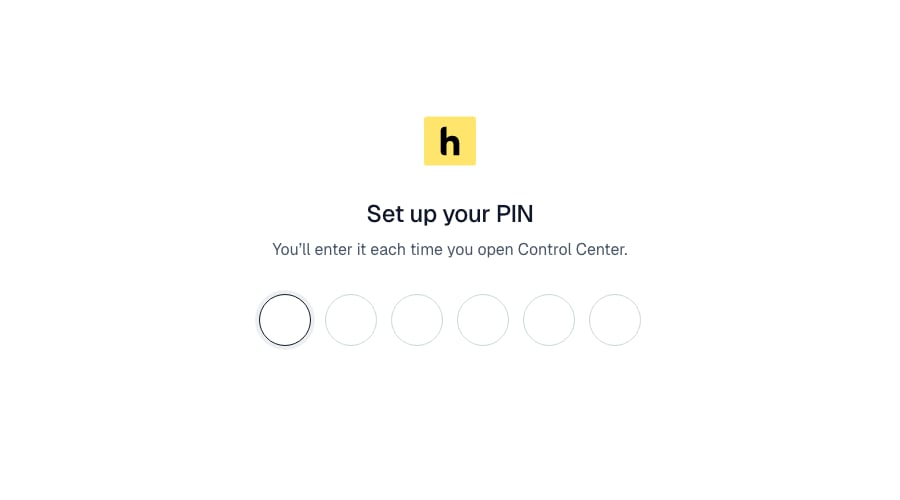
Enter 6 digits, then enter them again.
Unlock
Enter your PIN each time you open Control Center.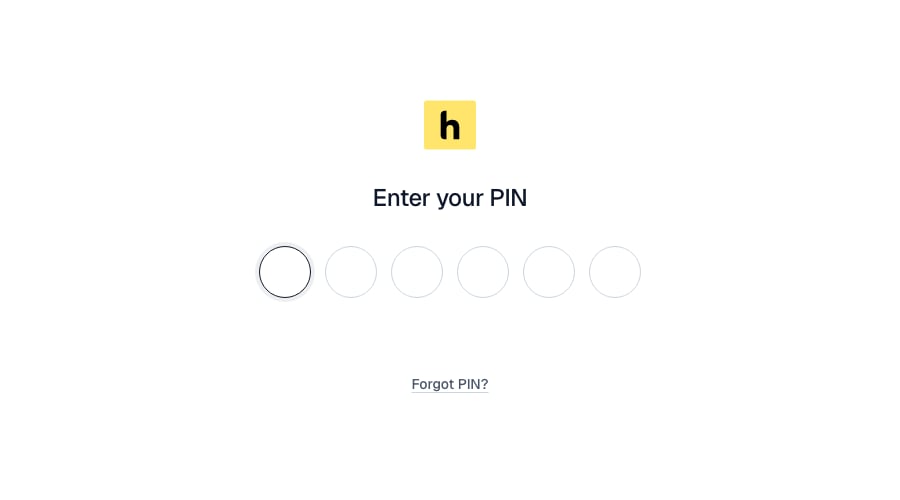
Enter your PIN.
When the app locks
- You select the padlock icon at the top right.
- You close the desktop window.
- You reopen a closed tab, or duplicate a tab.
- The app or server restarts. Everyone is signed out.
Change your PIN
Open Settings → Security → Change PIN. Enter your current PIN, then the new one twice. Other tabs and browsers are signed out. On StartOS and Umbrel, Sign out everywhere signs out every browser at once.Forgot your PIN?
Select Forgot PIN? on the sign-in screen. Your accounts and history are kept on every platform.- Mac and Windows
- StartOS
- Umbrel
- Select Reset PIN.
- Enter your computer’s administrator password when asked.
- The app restarts. Set a new PIN.