

1. Set your PIN
Choose a 6-digit PIN. You enter it each time you open Control Center. See PIN and lock.2. The introduction
A short introduction appears the first time. It shows sample data, not yours.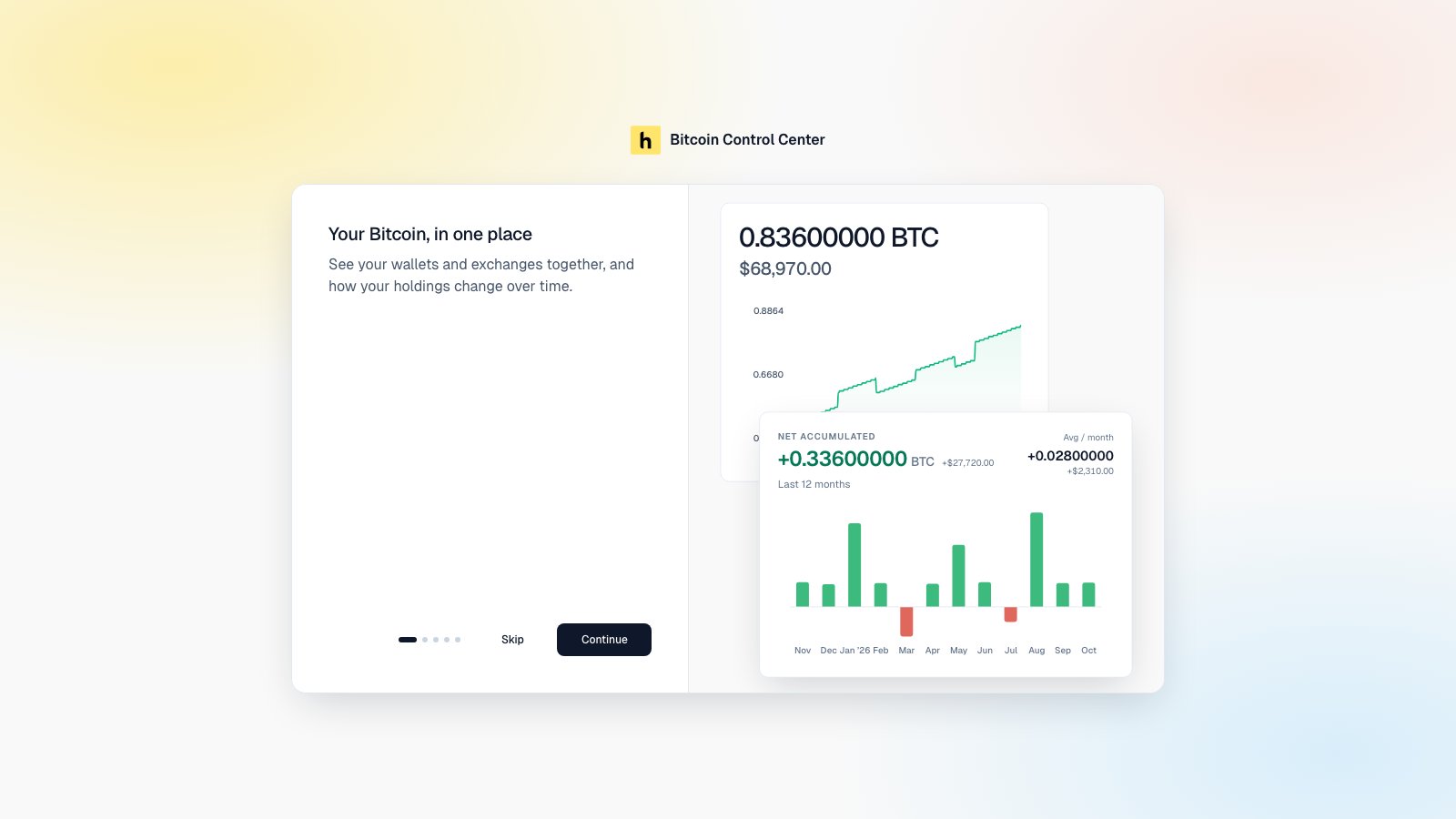
The first-run introduction. Select Skip or Continue.
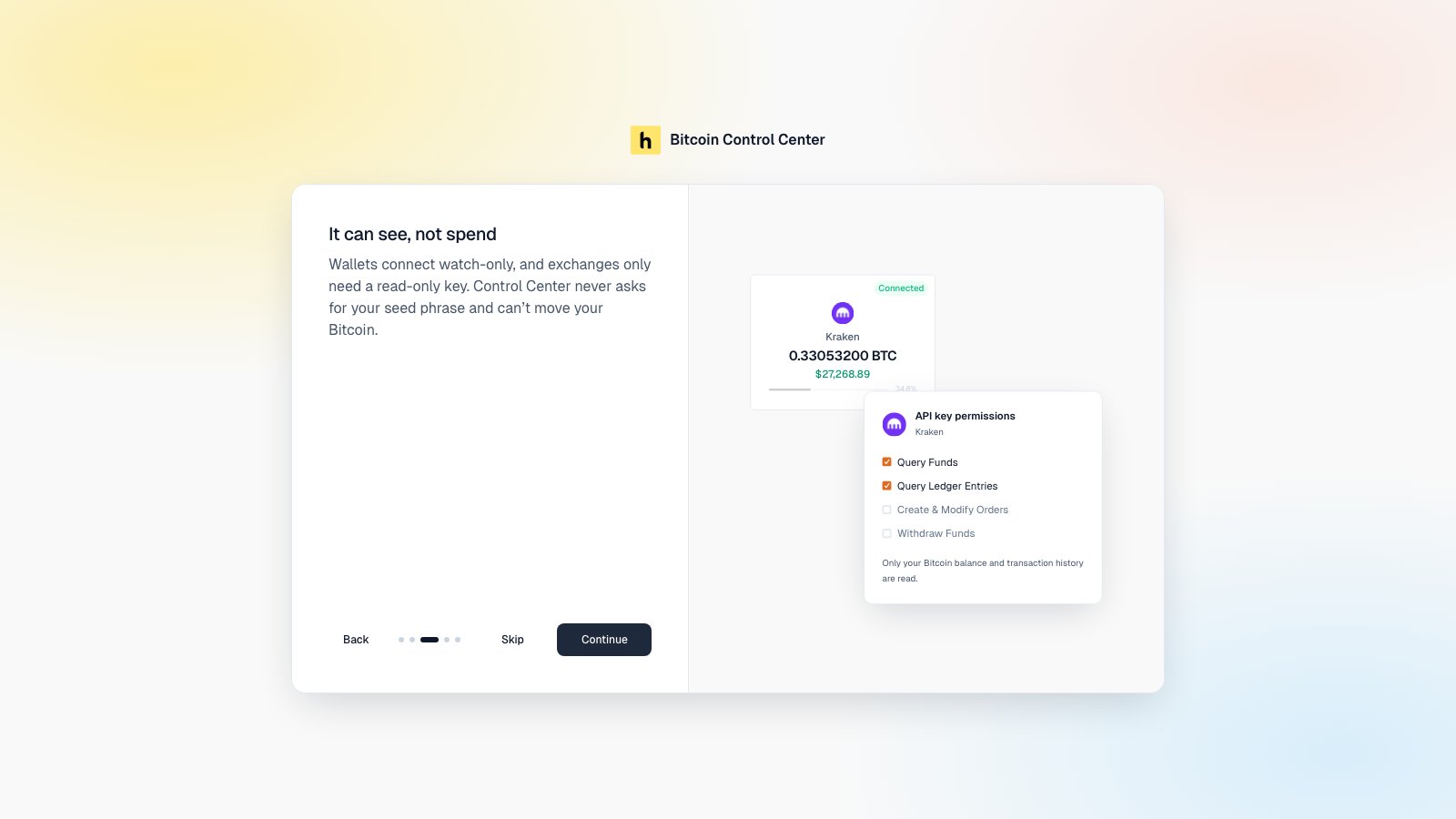
Wallets are watch-only. Exchanges use read-only keys.
- It can see, not spend. Wallets are watch-only. Exchanges need a read-only key.
- Your data stays with you. History is saved on your device.
- Start with one account. Have your hardware wallet, an exchange API key, or a balance ready.
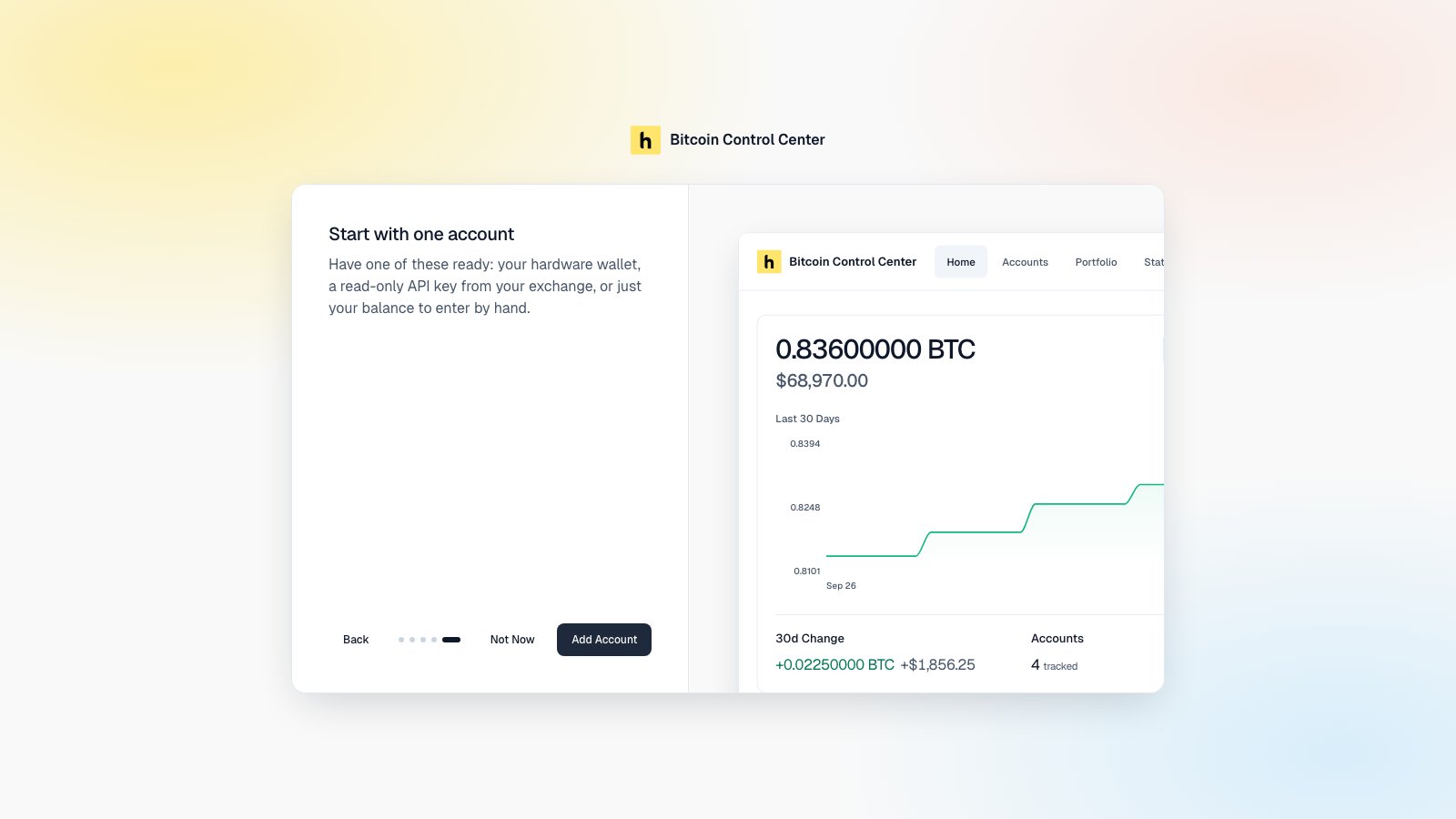
The last step takes you to Add Account.
3. Choose an Electrum server (desktop)
Control Center reads wallet balances from an Electrum server. Your choice affects privacy.
StartOS and Umbrel always use your own Electrs. Skip this step there.
Add your server
- Open Settings (gear icon, top right).
- Under Electrum Server, select New connection.
- Enter a Name, Host, Port, and Protocol.
- Select Test Connection. Then select Save & Connect.
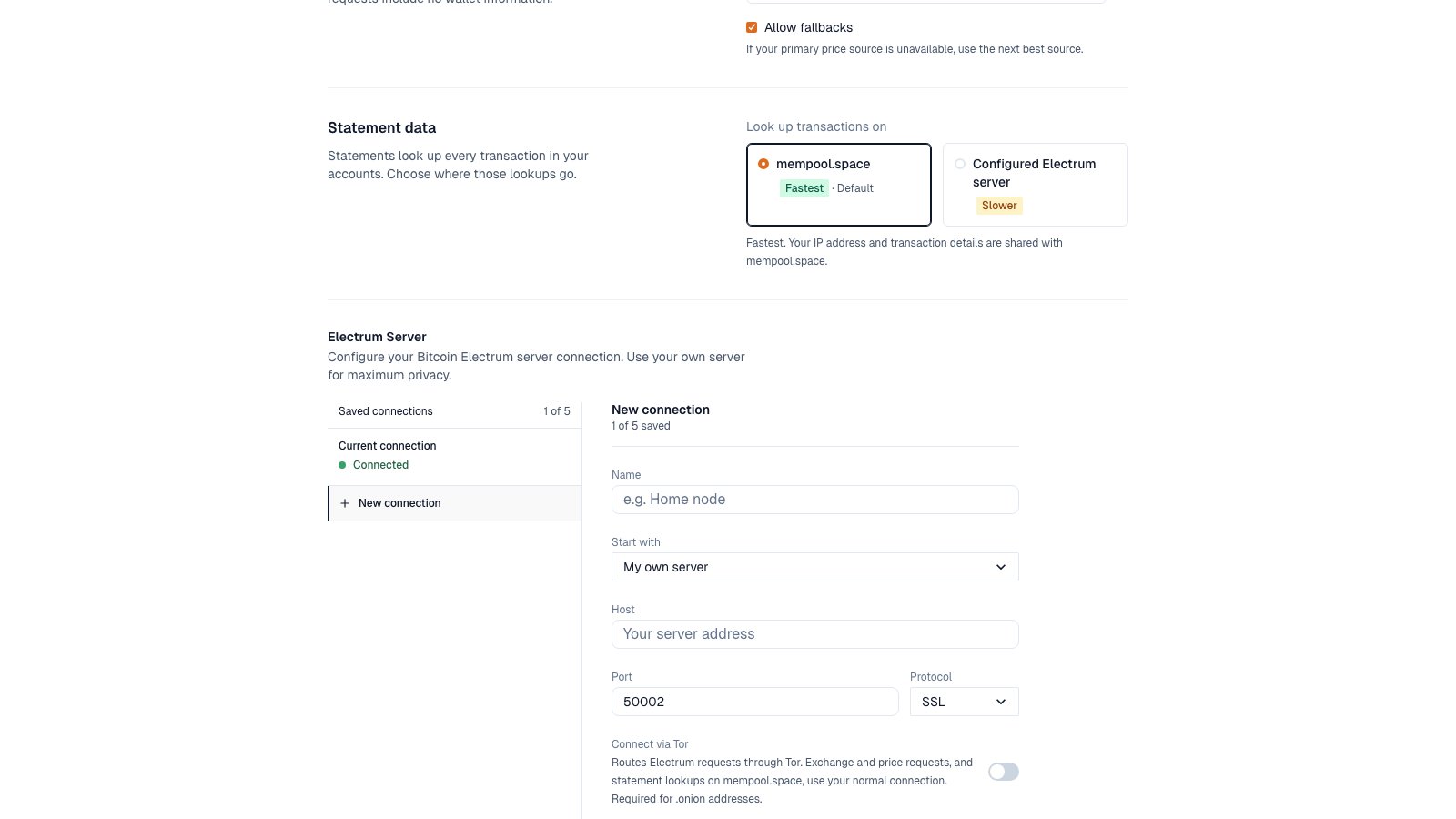
Add a saved connection in Settings.
- Port: SSL usually uses
50002. Plain TCP usually uses50001. - Protocol: use SSL for any server not on your own network. TCP is not encrypted.
- Connect via Tor: required for
.onionaddresses. Tor can take up to two minutes to start the first time.
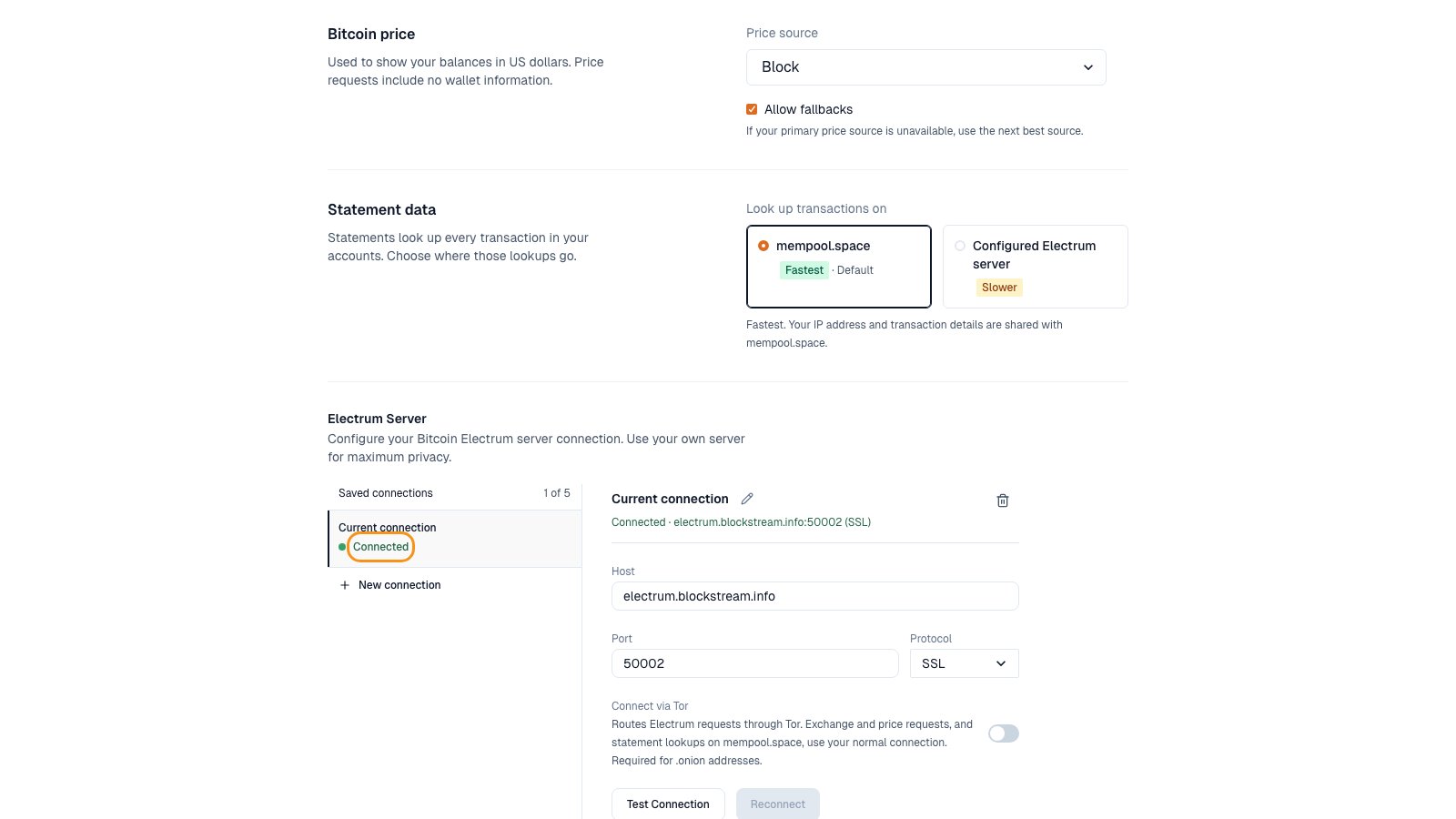
Connected.
4. Add your name
Open Settings. Under Personal information, enter Your name. Select Save name. It pre-fills the name on new statements.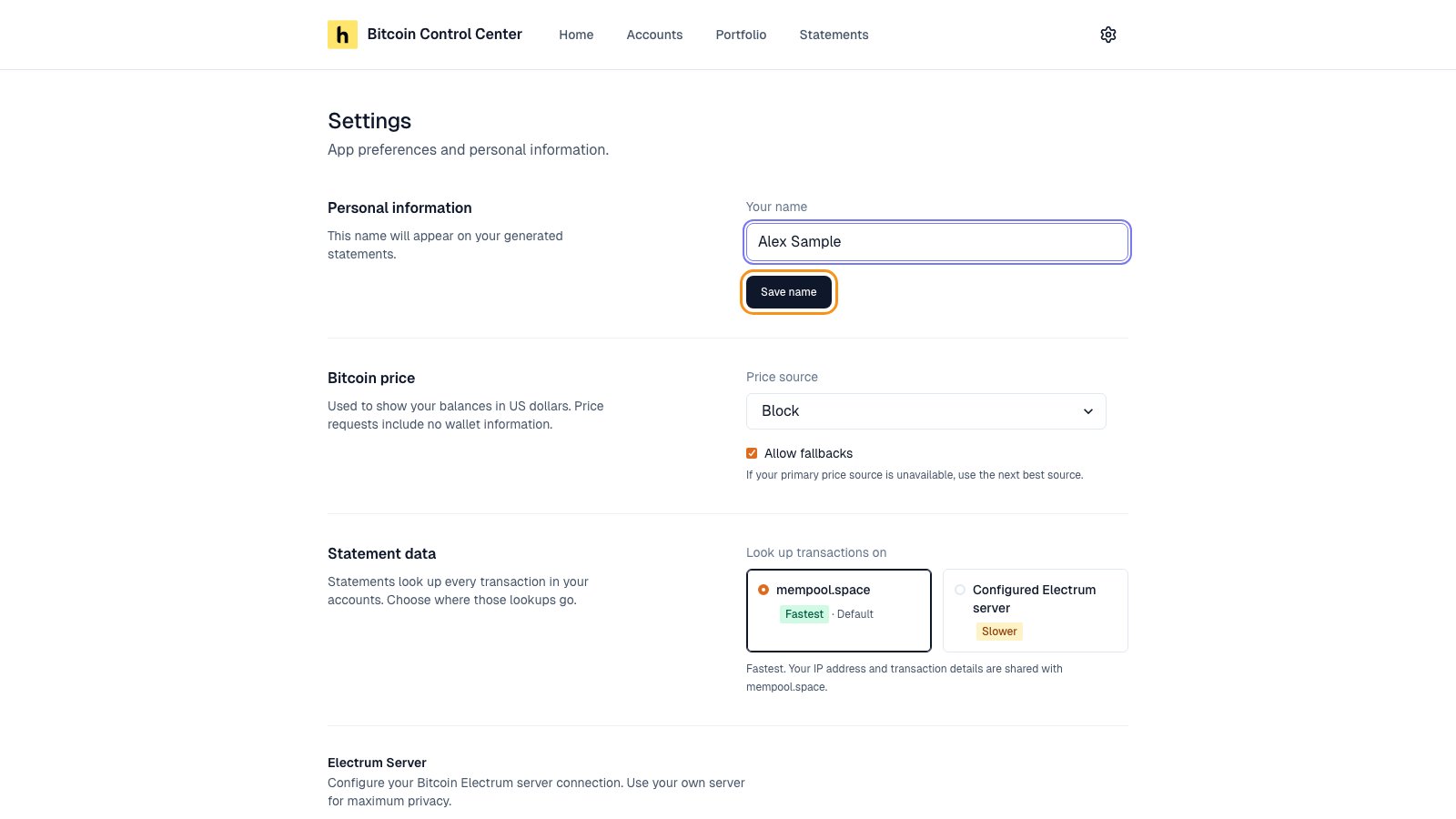
Your name on statements.